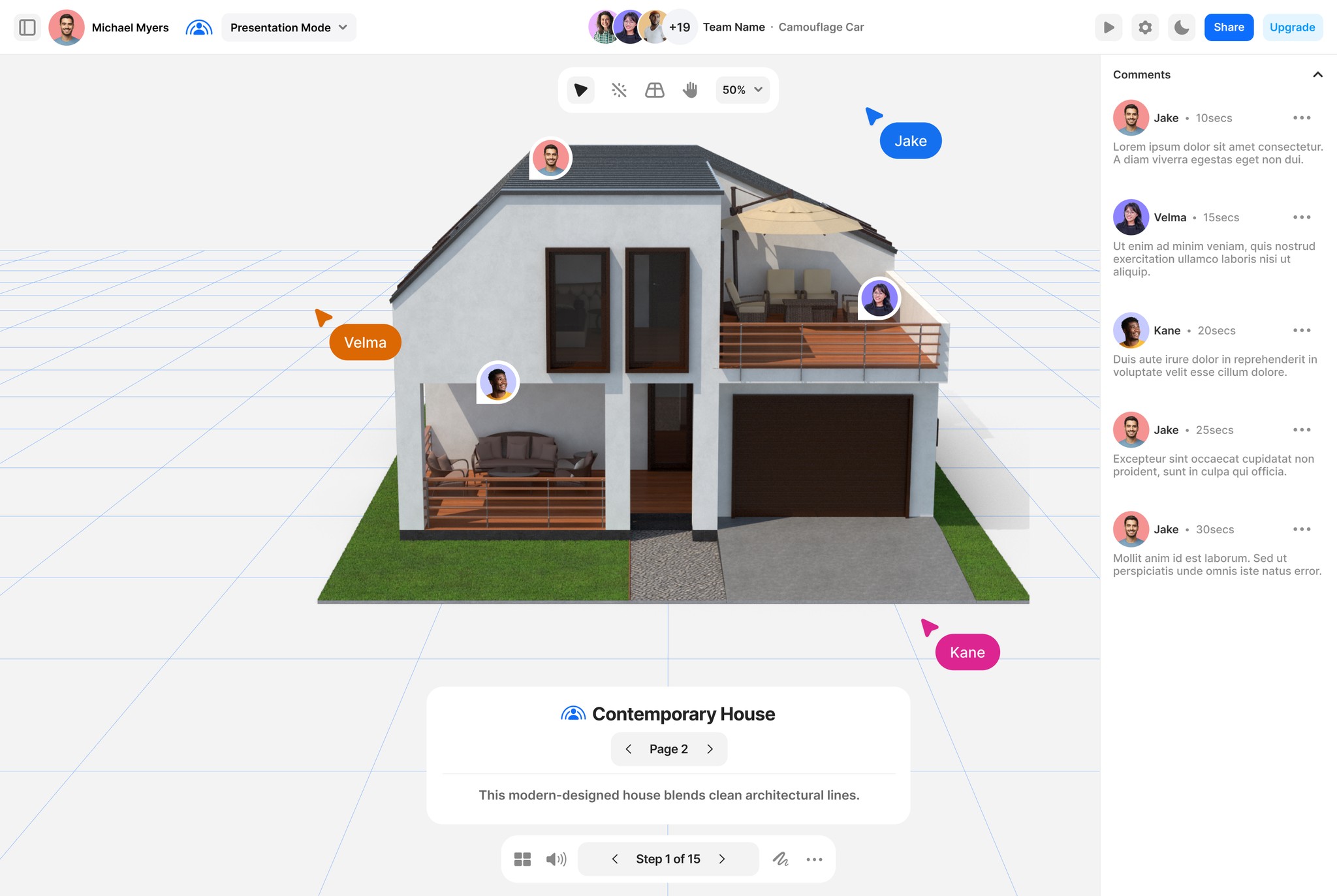
Desktop user interface
This guide provides an overview of the JigSpace interface and its primary functions across both design and presentation workflows. Whether you're prototyping a product or preparing it for stakeholder review, understanding the UI helps streamline your process and unlock the full
potential of spatial computing.
JigSpace supports both Light and Dark Mode, which you can toggle at any time using the moon icon in the top toolbar.

1. Home
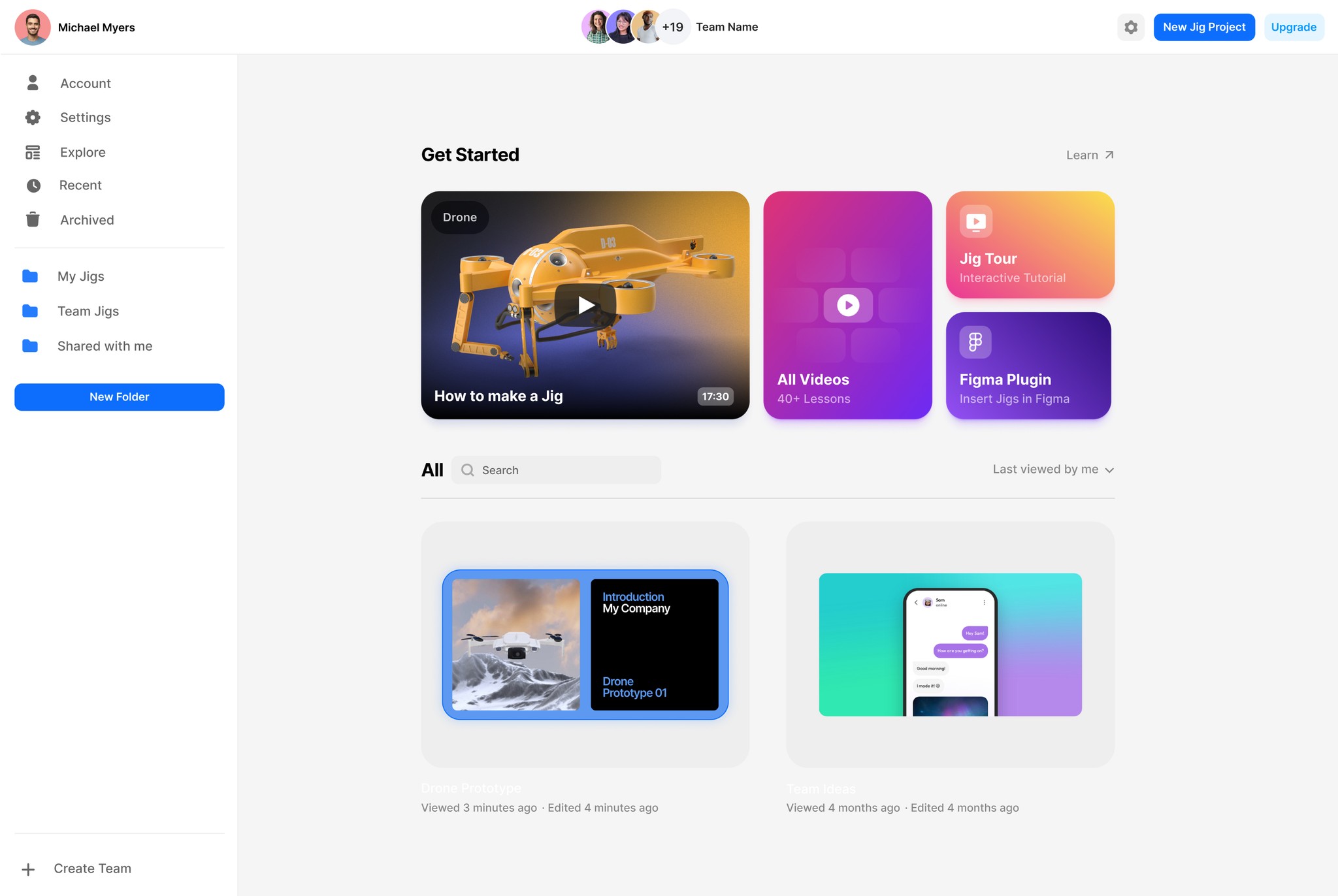
The Home screen provides quick access to your recent Jigs, templates, and projects shared with your team. It acts as your central dashboard, keeping your workspace organized and accessible. From here, you can create new Jigs, explore templates, or resume work on existing presentations.
Depending on your membership tier you'll also be able to create multiple teams and folders.
Design mode
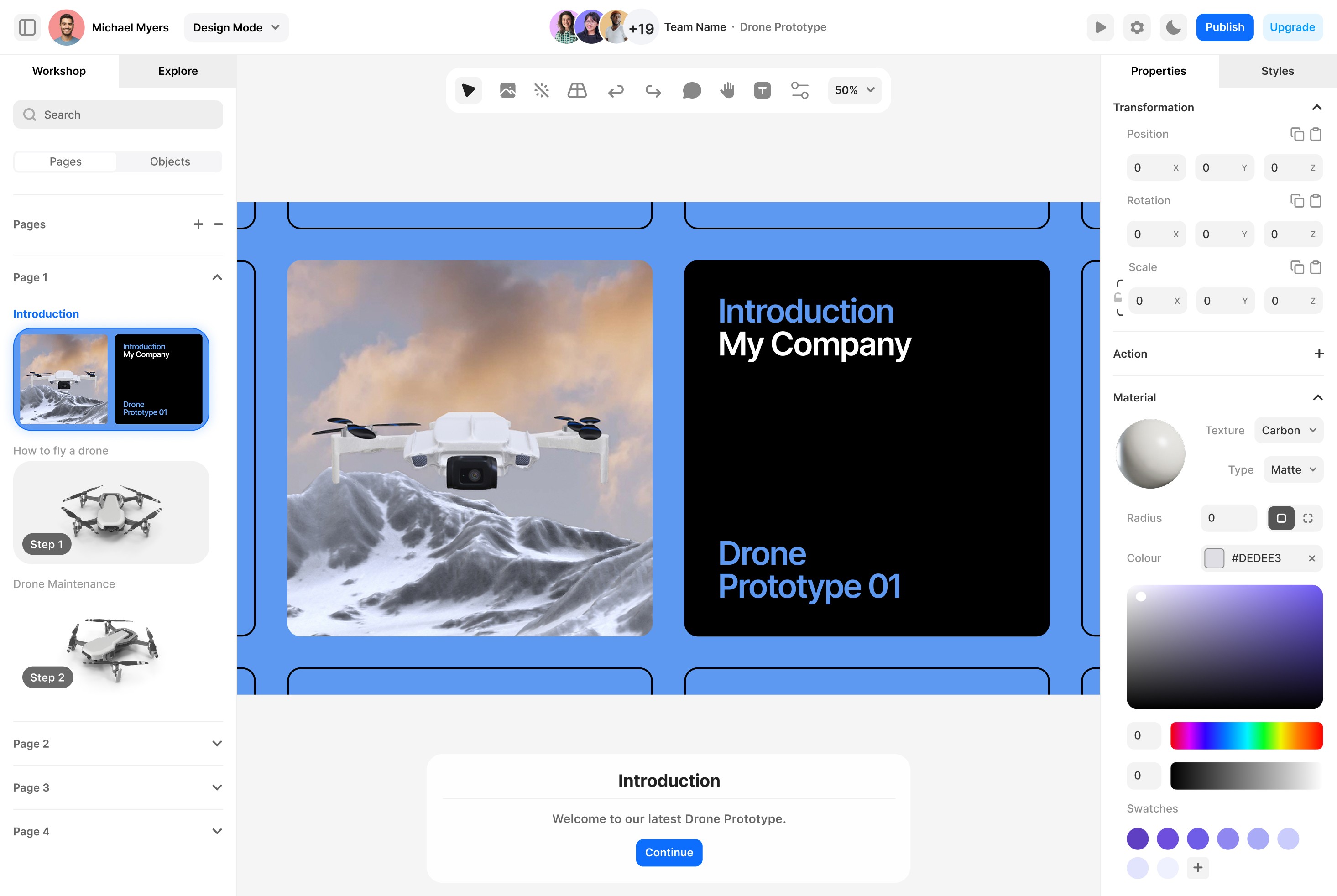
Design Mode is the primary environment for creating, editing, and structuring Jigs. Every element here is purpose-built for interactive storytelling and technical clarity.
2a. Pages
Each Page functions like a chapter in your presentation and is made up of a sequence of Steps. Steps define the animations, object states, and transitions that occur within that Page.
Pages allow you to break down complex information into manageable segments, while Steps within each Page provide the motion, focus, and narrative detail.
The Pages area is available via the segmented control on the 'Workshop' panel to the left of the screen. Take a closer look here
2b. Objects
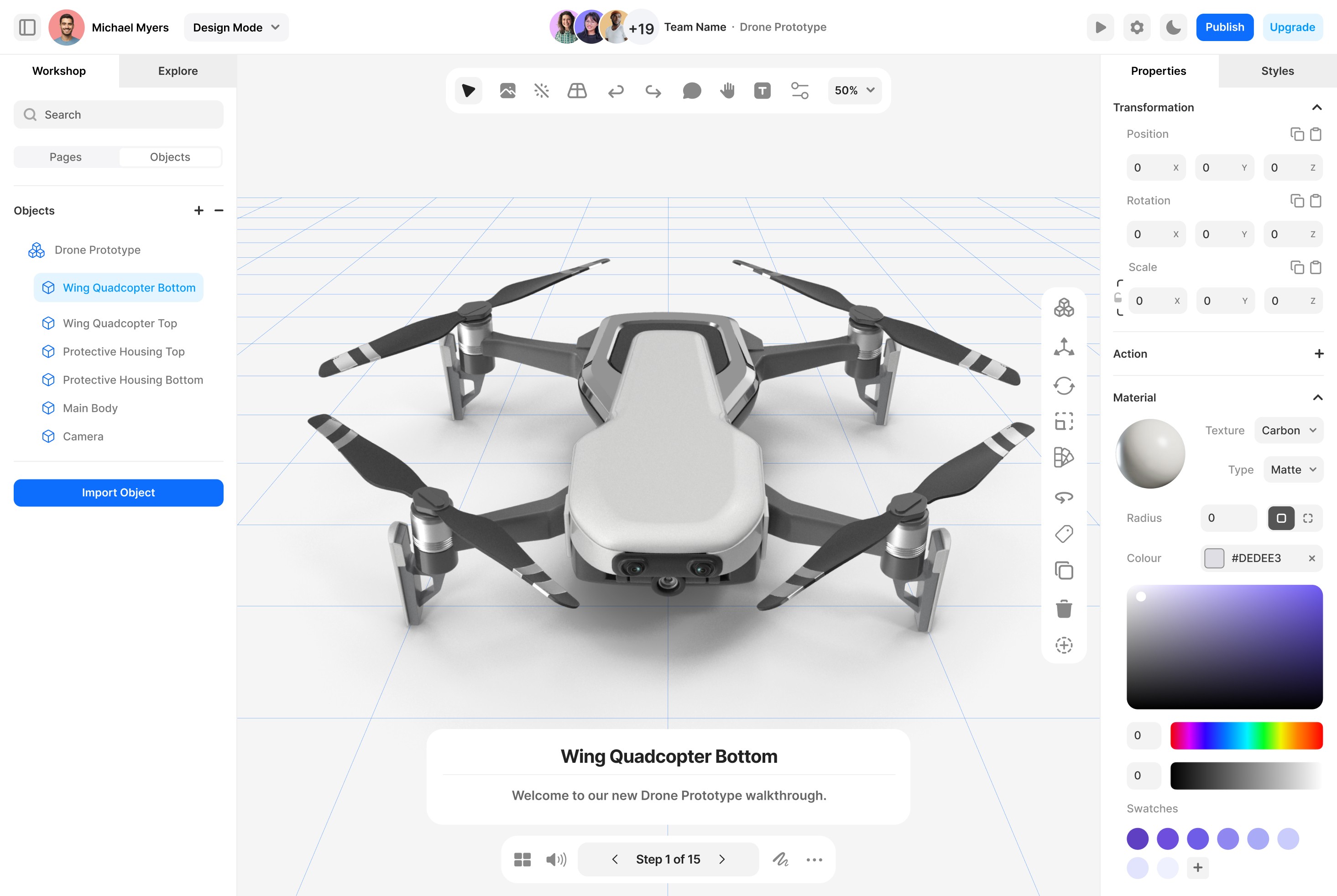
Each Page contains Objects — including 3D models, images, text labels, and annotations. These are the core elements that convey meaning and function. Objects can be positioned, styled, animated, or toggled to guide the viewer through your product or process.
The Objects area is opened with the segmented controls featured in the Workshop panel to the left of the screen. Take a closer look here
3. Explore
Explore is JigSpace’s content hub, a hybrid library where users can discover, publish, and even sell 3D presentations and assets. It’s built to support community collaboration and accelerate content creation at scale.
Explore includes
Community Publishing: Share Jigs with the broader community or explore content built by other creators, designers, and engineers.
Commercial Licensing: Sell your Jigs or integrate licensed assets into your own work for faster prototyping and deployment.
Generative AI: Create 3D models, materials, or environments using natural language prompts. Ideal for filling gaps or jumpstarting early-stage concepts.
Curated Collections: Browse Jigs by industry, use case, or design pattern to discover relevant, high-quality examples.
To open Explore find the tab on the 'Workshop' panel to the left of the UI.
Take a closer look here
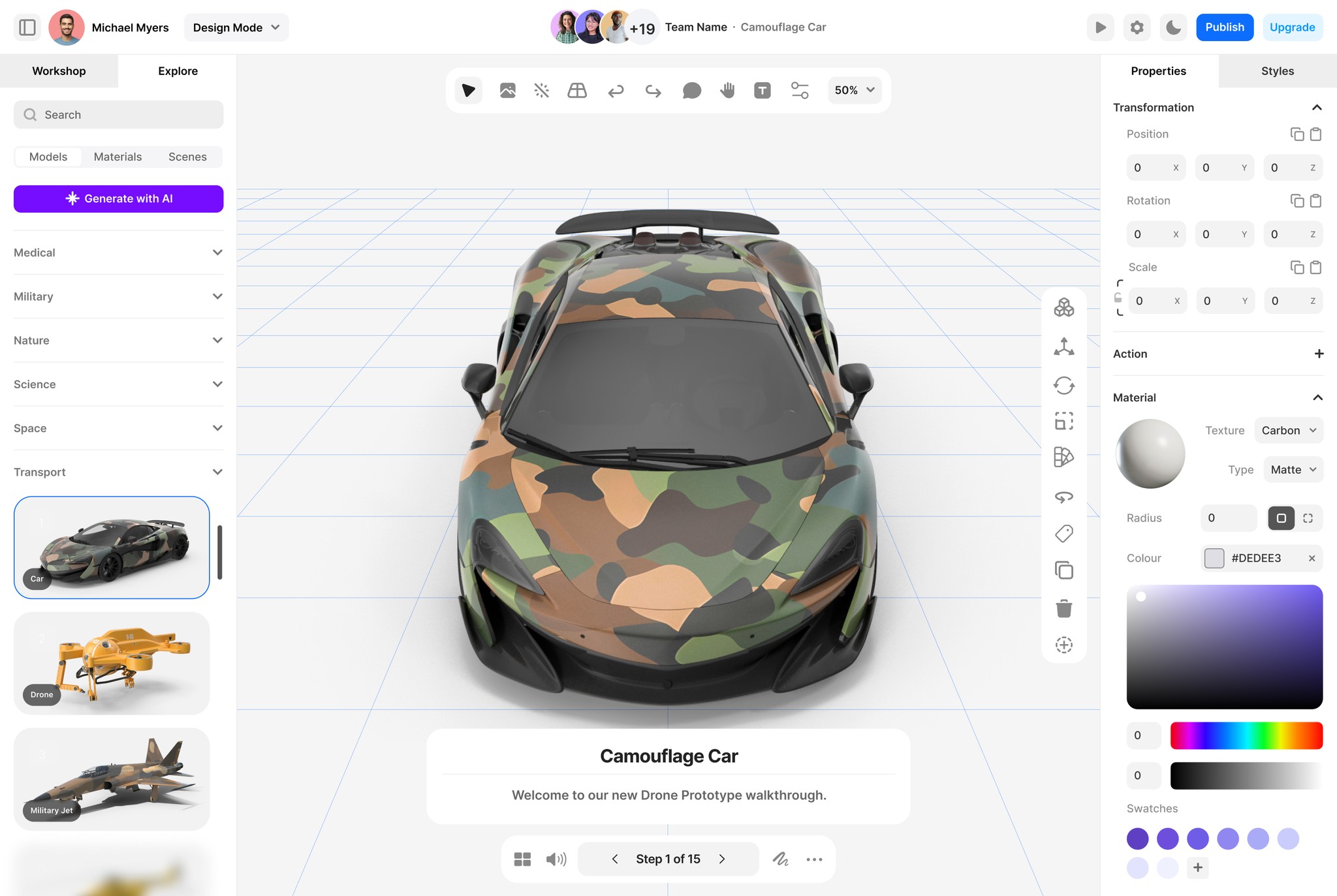
4. Properties
The Properties Panel allows for precise control over selected objects. Adjust position, rotation, scale, visibility, and metadata. This is especially useful when working with imported CAD assets
or when aligning elements to exact dimensions.
5. Styles
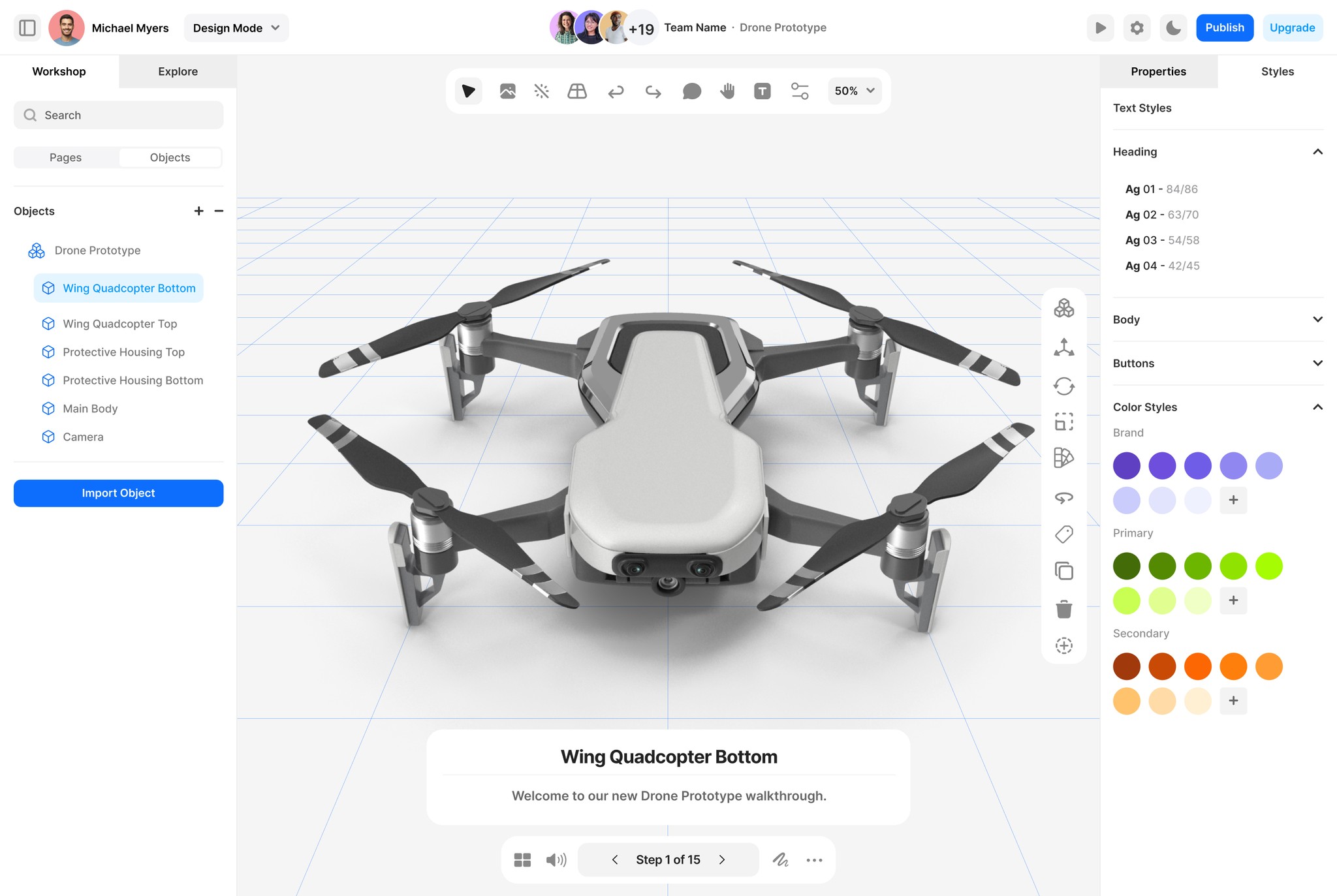
The Styles panel controls the visual presentation of text, labels, arrows, and callouts. Apply consistent formatting to ensure clarity, accessibility, and brand alignment across your Jigs.
Take a closer look here
6. Instructions Panel (Design Mode)
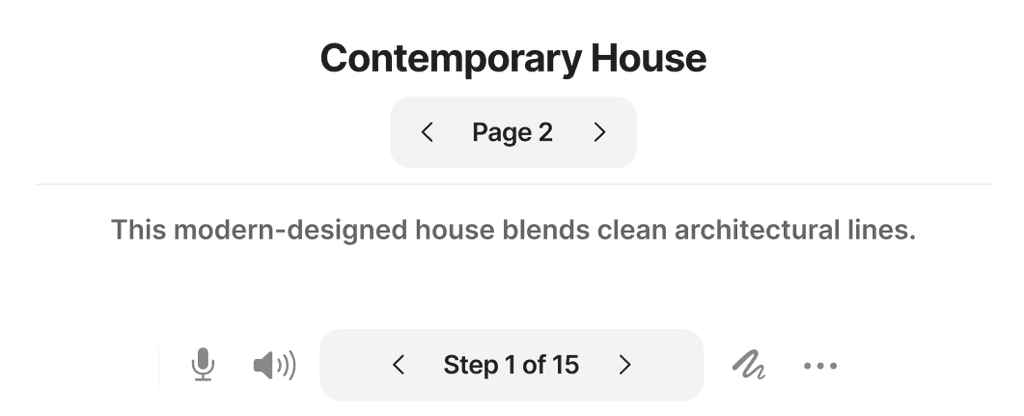
Use the Instructions Panel to add step titles, descriptions or voice narration. This panel defines
the instructional flow of your Jig — guiding users through each stage with clarity and intent.
6a. Instructions Panel (Presentation Mode)
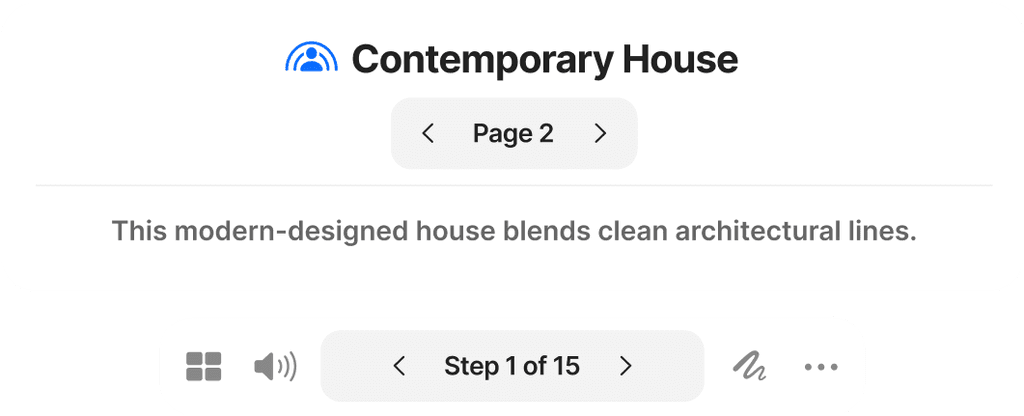
In Presentation Mode, your instructional steps are displayed in a simplified, interactive format. Users can tap or click through the Jig without distraction from editing tools. This view is ideal for stakeholder demos, self-guided product tours, or spatial experiences on devices like the Apple Vision Pro.
7. Menubar
The menubar lives at the top center of the UI, it's where essential UI functions are selected such as cursor mode, import content, spin fx, perspective, undo, redo, comments, canvas pan, add text and Jig settings.

8. Toolbar
The toolbar lives at the center right of the UI, it's where essential UI functions are selected such as cursor mode, import content, add labels, spin fx, perspective, undo, redo, comments, canvas pan.

Presentation mode